

A smooth ride starts with a clear pickup point and destination. To learn how to book a ride by app in Kenya, enter both locations, choose an available vehicle, review the fare and payment options, then confirm the trip. You can also book through a website or customer service when those options are offered.
It’s normal to want to know the cost, how to pay and whether a ride is available before you commit. The right choice depends on the pickup area, destination, time and vehicle options shown. This guide walks you through booking step by step, explains how to compare payment methods and shows what to check before confirming, so you can plan your trip with confidence.
Key Takeaways
- Enter your pickup point and destination, then compare the available vehicle options before confirming a booking.
- Review the payment methods shown for your trip and select the one that suits you before you book.
- Choose an on-demand ride or look for advance scheduling options based on your travel plans.
- Check the pickup area and driver availability in the booking flow, then use ROVO to book a ride through its app.
Booking through the mobile app, website, or customer service
Choose an available booking channel, then enter your pickup point and destination. Before confirming, review the ride option, fare offer, and trip details shown. If you’re learning how to book a ride by app, follow each screen in order and correct any location pin that doesn’t match your intended meeting point.
Booking Channels
A mobile app guides you through entering locations, selecting a ride, and confirming the request. A website can offer a similar booking flow when the service supports online bookings. Customer service may help arrange a trip through its available contact channel. In each case, check that the pickup point is clear, especially at a large venue or busy street. Confirm the destination before submitting.
Account Setup
To create an account, open the ride-booking app and follow its sign-up prompts. Enter the requested details and complete any verification step shown in the app. Use contact information you can access, since the platform may use it to identify your account or share trip updates. Before booking, check that your name and account details are correct so the request is linked to the right profile.
Vehicle and Ride Options
Choose a vehicle type based on your trip needs, such as passenger numbers, luggage, and preferred comfort level. Apps show the ride options available for your booking, and choices can vary by service and location. Before getting in, compare the driver’s first name, vehicle type, and number plate with the trip details. The European Union recommends checking these identifiers before entering a booked ride.
Fare Estimates Before Booking
In Kenya, a trip’s fare can depend on the selected ride and route between your pickup and destination. Enter both locations accurately to view the offer for that journey. On most current ride-hailing apps, customers can accept or decline the displayed price offer before booking, according to EUR-Lex. Review the fare and trip details before confirming. If the offer doesn’t suit your plans, decline it or change your ride selection. Knowing how to book a ride by app includes checking the final details before you request the trip.
Cash and digital payment methods
Payment options depend on what the app displays for your booking. Before confirming, open the payment section and review the methods offered. Select your preferred option, then check that it appears in the trip summary. This helps avoid confusion when the ride ends.
Paying with cash
If you choose cash, follow the app’s instructions for settling the fare at the end of the trip. Keep your selected method in mind when the driver arrives, and check the trip details before setting off. If the route or destination needs to change, update the trip through the app where possible. Review any updated fare information before agreeing to the change. Don’t assume cash is available on every ride; use the options displayed for that booking.
Using digital payment
For a digital payment, choose an option listed in the app and complete any requested setup before requesting a ride. Check the selected method in your booking summary, especially if your account has a saved payment option. After the trip, review the app’s receipt or payment status. If a transaction appears incomplete, use the app’s support route and keep your trip details handy. Don’t share payment credentials in a message or with anyone outside the app.
Use this quick check before confirming:
- Choose cash or an available digital option in the payment menu.
- Confirm the selected method appears with your trip details.
- After arrival, check that the payment status or receipt matches your chosen method.
In Kenya, digital payment can be useful when you prefer not to handle cash during a trip. Cash can suit riders who want to pay directly after travelling. Your choice depends on the payment methods shown for that booking and what works for you. For an app-based booking flow, explore the ride-booking app and review its payment choices before confirming.
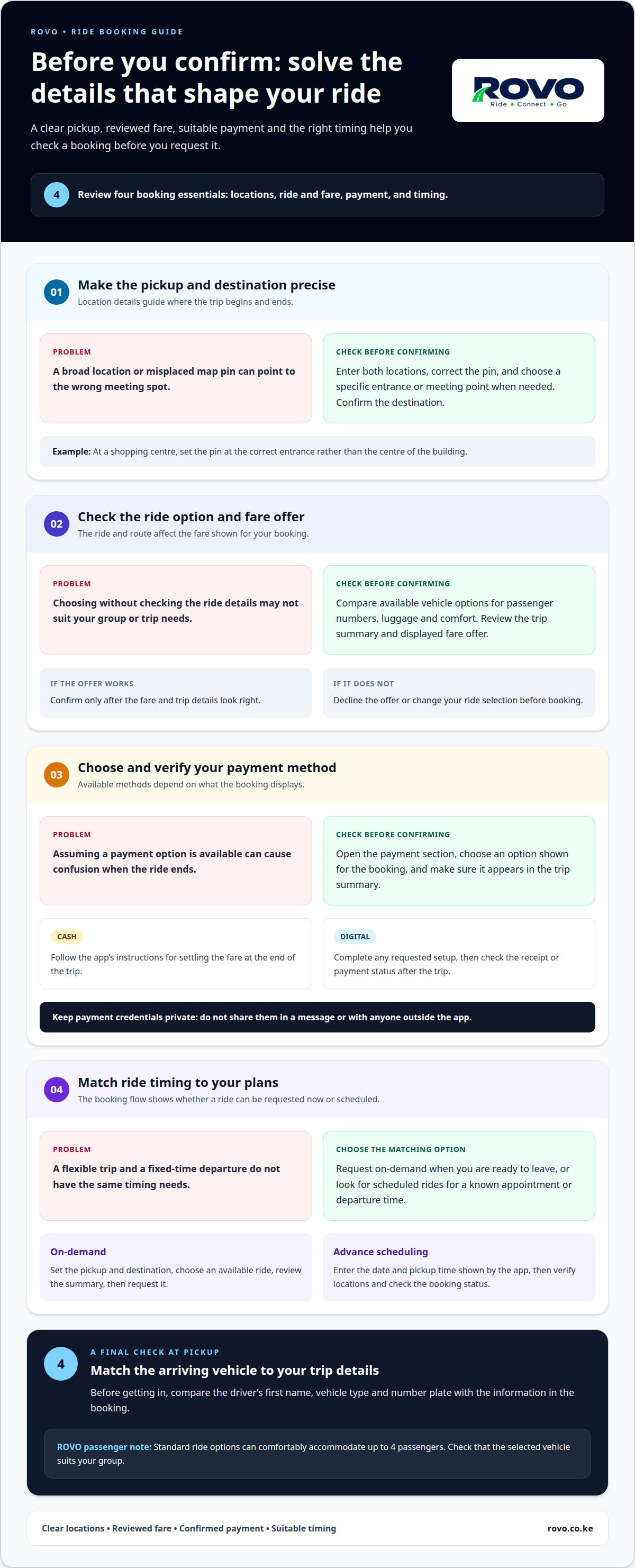
On-demand rides and advance scheduling
Choose an on-demand ride when you’re ready to leave, or schedule a pickup ahead for a planned journey. The booking screen shows which option applies, along with the pickup details you need to review before confirming.
Requesting an on-demand ride
For an immediate trip, open the app when you’re ready, set your pickup point and enter your destination. Check the map pin carefully. At a shopping centre, for example, place it at the correct entrance rather than the centre of the building. Select an available ride, review the trip summary and request the ride. Keep the app open for booking updates, and go to the confirmed pickup point. This suits a flexible errand or an unplanned journey.
Planning a pickup in advance
For a meeting or airport journey, look for a scheduled-ride option in the booking flow. Enter the date and pickup time shown by the app, then verify the location and destination before saving the request. Leave enough time for your own preparation and travel plans. A planned booking can help organise the departure, but it doesn’t remove the need to review trip details. Check the app for the booking status and any instructions attached to the scheduled request.
Use these steps to choose the right timing:
- Pick on-demand for a trip you’re ready to take now.
- Use advance scheduling for a known appointment or departure time.
- Review the pickup pin, date, time, and destination before confirming.
A flexible lunch trip may suit an on-demand request, while a work presentation with a fixed start time calls for planning your pickup in advance. In either case, avoid entering a broad location when you can set a specific building entrance or meeting point. Clear details help match the request to your plans. Review the trip summary again if your schedule changes, and update the booking through the app where possible.
When using ROVO, standard ride options can comfortably accommodate up to 4 passengers. When choosing an option, consider how many people are travelling and check that the vehicle selection suits your group. Confirm the pickup point and trip details before you submit the request.
Operating areas and driver availability
After a driver accepts your request, open the active trip screen to follow the vehicle on the map if live tracking is available. Use the app’s trip-sharing control to send details to someone you trust. Share the pickup and destination shown for that journey, not a separate address that could cause confusion.
To contact the driver, open the active booking and use its call or message option if displayed. For a delay, cancellation or trip concern, open the app’s Help or Support section and select the issue that best matches your situation. Keep your booking details handy, including the pickup point and trip status.
Coverage depends on the service’s operating area and the pickup location you enter. A request from a busy town centre may show different options from one placed outside the area served. Set the map pin at your exact pickup point, then review the available rides before deciding. A nearby landmark, building entrance, or business name can help identify the meeting spot clearly.
Availability can change with the pickup point, time and ride type. If the app shows no suitable ride, adjust the pickup pin to a nearby accessible spot or try another ride option. Review the map after changing the location, and make sure the new pin marks a safe, practical place to meet.
- Check whether your pickup point appears within the service area.
- Compare the ride options shown for that location.
- Use the active trip screen for tracking, driver contact, or support tools.
For example, a pin inside a large shopping complex may be harder to reach than one placed at its public entrance. Choose a clear meeting point, then watch the trip screen for updates. To check ride availability for your journey, open the ride-booking app and enter your pickup and destination.
ROVO: ROVO ride-booking app
ROVO’s ride-booking app lets you request a ride and choose from Economy, Comfort and SUV options. Use it to enter your pickup and destination, review the available rides and book in one app. ROVO also offers delivery solutions for sending items.
Before confirming a ride, enter your trip details and review the information shown in the app. Choose the vehicle option that fits your journey, then check the booking details. This gives you a clear next step after comparing booking channels, payment methods, timing, and availability.
Explore ROVO’s ride-booking app and choose your next trip online.
Make your next trip easier to plan
A smoother journey starts with a booking routine that fits your day. For a familiar route, save time by keeping your destination details ready. For a new trip, pause before confirming and make sure the pickup point matches where you can meet the driver. These small habits make it easier to use a ride-booking app with confidence, whether you’re travelling across Nairobi or arranging a journey elsewhere in Kenya.
If you’re ready to put how to book a ride by app into practice, choose a ride option that suits your plans and review the details in ROVO. You can also use ROVO’s delivery solutions when you need to send an item. Take the next step at Contact ROVO for help, and get moving with a clear plan.
Frequently Asked Questions
How do you book a ride using a ride-hailing app?
Open the ride-hailing app, enter your trip details, select a ride option and confirm the request. In ROVO’s app, you can choose Economy, Comfort or SUV. After booking, check the trip status and compare the assigned vehicle details with the information shown before entering. Keep the booking screen available in case you need to review your request.
How do you set your pickup and destination locations in the app?
Enter your pickup location first, then add your destination in the app’s trip fields. Use a building name or nearby landmark if a street address covers a large area. Check that the map pins match your intended starting point and endpoint. At a hotel or shopping centre, select the correct entrance or meeting spot so your pickup instructions are clear.

