

A familiar-looking car isn’t enough to confirm your ride. Knowing what to check before confirming a ride starts with comparing the driver’s name and photo in the app with the person who arrives. Match the vehicle’s make, model and registration number too. If any detail differs, don’t board. Cancel the trip and report the issue in the app.
Pause if something doesn’t match, even when you’re in a hurry. A quick check helps you confirm whether this is the ride you booked and decide what to do if it isn’t.
This guide explains how to compare the driver’s photo and name, check the vehicle details and respond to a mismatch. You’ll also learn what to include in a vehicle report, so you can describe the issue clearly and choose a safer next step.
Key Takeaways
- Compare the arriving vehicle’s make, model and registration number with the details in your app before you board.
- Check the driver’s name and photo, not just whether the person or car looks familiar.
- Review your pickup and drop-off points so the booking reflects where you need to go.
- If details don’t match or you feel unsafe, don’t board; cancel the trip and report the issue in the app.
What if my driver or vehicle details don’t match?
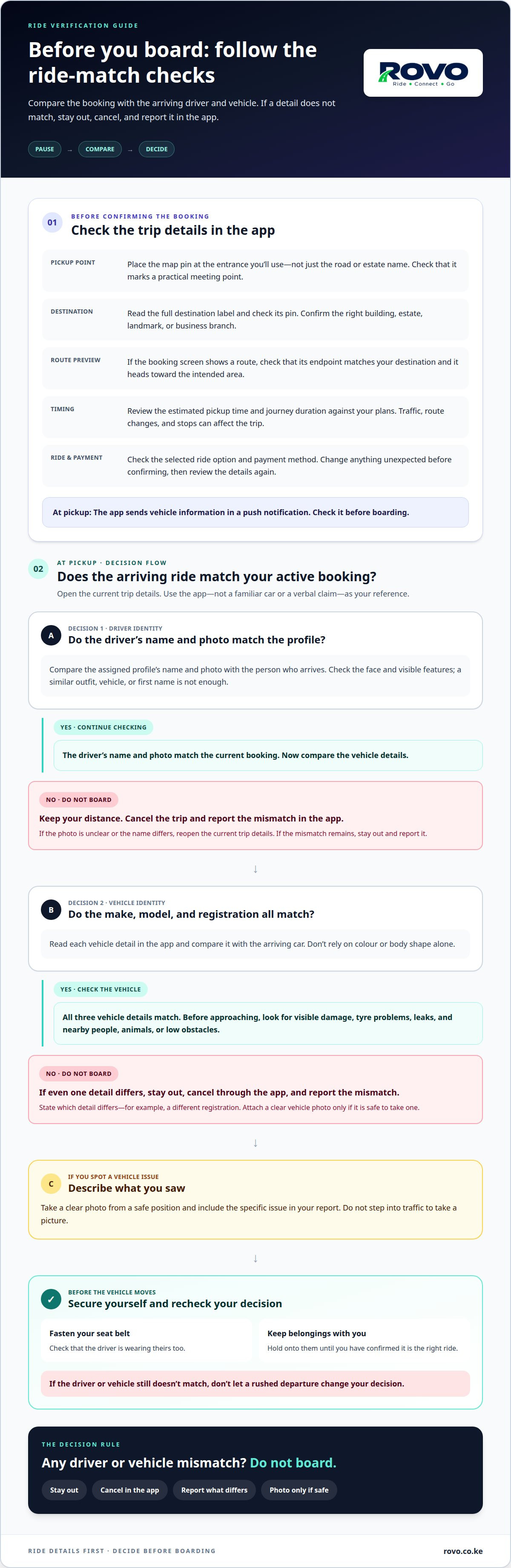
When deciding what to check before confirming a ride, review the driver and vehicle details, payment option, pickup estimate, journey duration and route shown in the app. Before boarding, compare the arriving driver and vehicle with your active booking. If any detail differs, pause and don’t get in.
-
Match Driver and Vehicle Details With the App
Open the active trip and compare the driver’s name and photo with the person who arrives. Confirm that the profile belongs to this booking, not an earlier ride. A familiar face or a driver who knows your destination isn’t enough if the profile differs. Use the details in the app to guide your decision.
-
Check the Vehicle Make, Model, and Registration
Read the vehicle’s make, model and registration in the app, then compare each detail with the arriving car. Don’t rely on colour or body shape alone. If even one detail differs, stay out and cancel the trip. Note the specific mismatch for your report, such as a different registration.
-
Check the Vehicle and Surrounding Area
Look over the vehicle before approaching. Check for visible damage, tyre problems or leaks, and watch for people, animals or low obstacles nearby. If you report a vehicle issue, take a clear photo from a safe position and describe what you saw. Don’t step into traffic to take a picture.
-
Secure Yourself Before the Vehicle Moves
Before the car moves, fasten your seat belt and check that the driver is wearing theirs. Keep your belongings with you until you’ve confirmed you have the right ride. If the driver or vehicle still doesn’t match, don’t let a rushed departure change your decision.
-
Cancel and Report a Mismatch
Before boarding, cancel through the app and report the mismatch. State which detail differs, then attach a clear vehicle photo if it’s safe to take one. Keeping identity checks central to what to check before confirming a ride helps you make a clear decision before your trip begins.
Checking the driver’s name and photo
Use the driver profile in the app as your reference before approaching the vehicle. Check the name and photo separately, then compare them with the person who arrives.
- Open the assigned driver’s profile in your ride app. Read the displayed name and look closely at the photo before leaving your pickup point. Note the face, hairstyle and other visible features. These details help you compare the profile with the arriving person, rather than relying on a familiar car or a quick glance.
- Compare the photo with the driver in front of you. Check their overall facial appearance and distinguishing features in good light. A photo may look different on a small screen, so take a moment to compare carefully. A similar outfit, vehicle or first name isn’t a match if the person’s face differs.
- Read the driver’s name on the booking screen and compare it with the assigned profile. Focus on the name shown in your app. Don’t assume that a person who knows your destination or says they are your driver is the person assigned to your ride. Use the profile details, not a verbal claim, as your reference.
- Pause if the photo is unclear, the name differs or the person doesn’t match. Keep your distance from the vehicle and don’t board while you’re unsure. Reopen the trip details and make sure you’re viewing the current ride, not an earlier booking. If the mismatch remains, cancel and report it through the app.
- Make the comparison before you get into the vehicle, while you can still choose not to board. If another person is travelling with you, ask them to compare the profile too. A second look can help catch a detail missed in a rushed moment. For future bookings, review the driver details in your ride app before approaching.
What details should you verify before confirming a ride in Kenya?
- Set the pickup point before requesting a ride. Check the map pin against the entrance you’ll use, not just the road or estate name. For example, a gated apartment may have separate visitor and service entrances. Move the pin to your intended gate so the driver has a practical meeting point.
- Enter your destination, then read the full label and check its pin. Confirm the building, estate or landmark, especially if similar names appear in search results. If you’re going to a business with multiple branches, make sure you’ve selected the right location. Correct the destination before confirming.
- Review the route preview if the booking screen shows one. Check that its endpoint matches your destination and that the route heads towards the intended area. Treat the preview as a planning aid, since roads and travel conditions can affect the journey. Recheck the destination pin if the route points somewhere unexpected.
- Read the estimated pickup time and journey duration shown before booking. Compare the pickup estimate with your plans, then consider whether the journey time suits your appointment. Traffic, route changes and stops can affect the trip. If the timing no longer works for you, adjust your plans before requesting the ride.
- Check the selected ride option and payment method on the confirmation screen. Choose a ride type that suits your trip, then review the payment choice and any alternatives shown. Don’t assume an option is available unless it appears for that booking. Change any unexpected selection before confirming, then review the details again.
The app sends vehicle information in a push notification; check it before boarding. If details do not match or you feel unsafe, cancel and report through the app, including a clear vehicle photo and the issue encountered.
How can you check the pickup and drop-off locations before booking a ride?
- Place the pickup pin where you can meet the driver. Choose the right entrance, not just the building name. For example, if a building has separate visitor and delivery gates, select the entrance you’ll use. A pin on a nearby road may direct the driver to the wrong side.
- Zoom in on the map before saving your pickup point. Compare the pin with visible roads, gates and access paths. If you’re leaving a large apartment complex, move the marker to the gate where you’ll wait. This gives the driver a more useful meeting point than the complex name alone.
- Enter your destination, then check the map pin and location label. Confirm the building name, entrance and destination area, especially if several places have similar names. For an appointment, choose the entrance closest to where you need to go. Correct a misplaced pin before moving to the booking screen.
- Add a clear landmark or pickup note if the app offers that option. Choose a detail you can identify, such as “main gate” or “front entrance,” rather than “nearby.” Make sure the instruction matches the pin. Avoid choosing a meeting point across a busy road if you’ll wait on the other side.
- Review both pins and location labels on the final booking screen. Read the pickup and destination details, then compare them with the map. If the destination covers a large site, select the entrance closest to your actual meeting point. Correct any mismatch before requesting the ride.
- Once both points are clear, book a ride with clear pickup and drop-off details. Keep your selected pickup spot in mind while you wait. If your meeting point changes, update the pickup details in the app so the driver receives the new location.
ROVO: ROVO ride-booking app
ROVO lets you book rides through its app. Choose from Economy, Comfort and SUV rides to suit your trip. Before boarding, use the checks in this guide to compare the driver and vehicle details shown for your booking.
The app features verified drivers, real-time trip tracking and quick booking. ROVO lists fares with no hidden charges, so review the fare information shown in the app before confirming. These features can help you make an informed booking, but they don’t replace checking the driver’s name and photo, vehicle and registration yourself.
For your next trip, review the ride details in the ROVO app before confirming. Visit rovo.co.ke to explore ROVO.
Make a Confident Start to Your Next Trip
Build a brief pause into your departure routine, especially when plans change or you’re meeting a ride somewhere unfamiliar. Knowing what to check before confirming a ride turns that pause into a clear decision, rather than a rushed guess. Give yourself time to review the booking and decide whether you’re ready to travel. If something feels wrong, step back and use the app’s reporting options before continuing. You don’t need to trade caution for speed. A deliberate start helps you stay in control of your plans.
If you need help with a ROVO booking, contact ROVO for help. Take the next step when you’re ready, and set off with a plan that feels right for you.
Frequently Asked Questions
What’s verify your ride?
Verifying your ride means confirming that the arriving driver and vehicle match your active booking. Open the current trip, not an old notification or screenshot, and use its details as your reference. This matters if you’ve requested another ride after cancelling or changing plans. If the app still shows the previous booking, refresh the trip screen before deciding whether to board.
How can you check a ride-hailing driver's identity, rating, and vehicle details?
Compare the driver’s profile with the person and car assigned to your trip. Check the displayed name and photo, plus the vehicle’s make, model and registration. If a driver rating appears, treat it as background feedback, not proof of identity. A rating cannot establish that the person arriving matches your booking. Resolve any mismatch before boarding, and don’t rely on a verbal explanation alone.
What steps should you take if the driver or vehicle details do not match the booking?
Stay out of the vehicle, cancel the trip in the app and report the mismatch. Be specific, such as noting that the registration differs or the arriving person doesn’t match the profile. For a vehicle issue, include a clear photo if you can take one safely. Keep your report factual, and don’t continue the trip while the discrepancy remains.
How do you verify the fare estimate and any extra charges before confirming a ride in Kenya?
Review the fare information and payment method shown on the confirmation screen before confirming. ROVO lists fares with no hidden charges.

